
24 hours’ notice is required for any booking amendment, in line with our Terms of Service.
If you need to amend one of your bookings, you can do this quickly in your online account by following these steps:
Step 1: Go the Premier Education Family Portal and sign into your account.
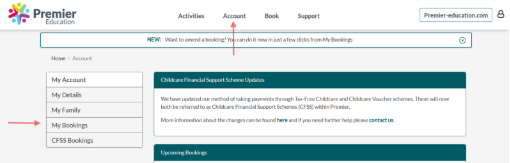
Step 2: Click on Account followed by My Bookings.
Step 3: You will now see a calendar with all your current bookings for each month.
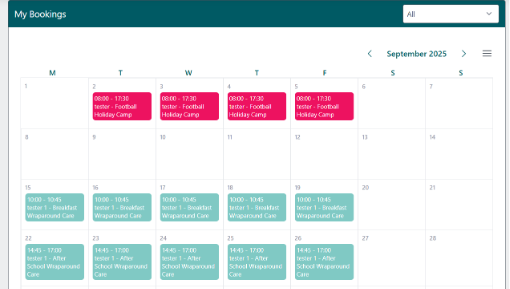
Step 4: Click on the booking you wish to amend, then select Amend Booking,

From here, you can:
Can I add more sessions to an existing booking?
Absolutely! You can add sessions online through your Family Portal as long as it's more than 2 hours before the session start time, and subject to availability.
Can I cancel a session?
You can cancel dates through the amendment journey in the Family Portal. Single cancelled sessions are non-refundable. To retain the value of a cancelled session it must be moved to an alternate date during the amendment process. For further guidance, please read - How do I cancel a session?
For information on refunds, please read - Can I cancel my booking and get a refund?
If you cannot make the change online, please contact our Customer Solutions team by emailing info@premier-education.com or using our Contact Us form.