
24 hours’ notice is required for any booking amendment, in line with our Terms of Service.
You can move a booked sessions to alternative available date within the same course by following these steps:
Video
When you remove a session and add a new one in its place, the value from the removed session is transferred to the new one.
Step-by-step
Step 1: Go the Premier Education Family Portal and sign into your account.
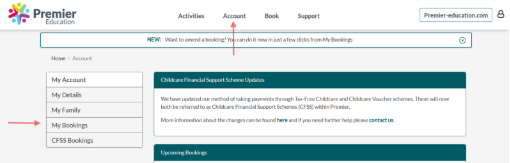
Step 2: Click on Account followed by My Bookings.
Step 3: You will now see a calendar with all your current bookings for each month.
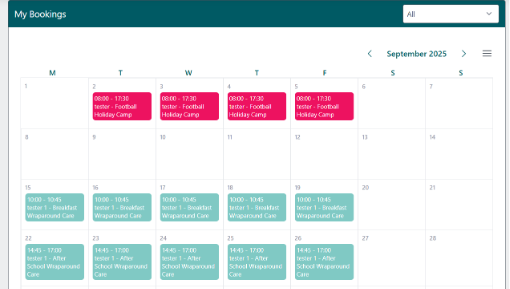
Step 4: Click on the booking you wish to amend, then select Amend Booking.

Step 5: A new calendar will appear:
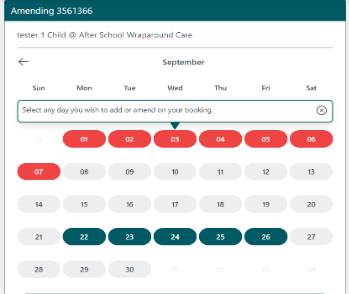
Step 6: Once you have cancelled the session by selecting to Clear Day, select the New Date, choose the Time Slot, and click Show Summary.
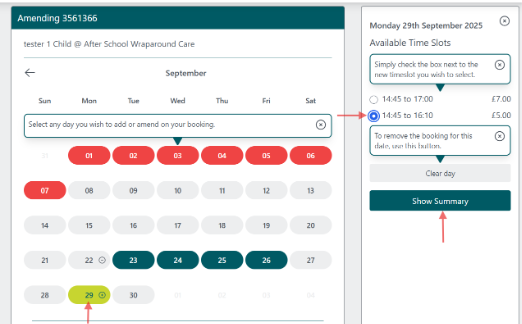
Step 7: Select Complete Amendment.
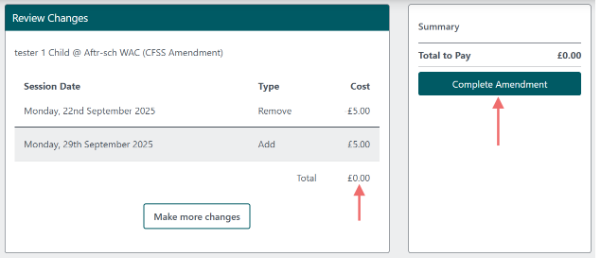
And that’s it - your booking will be updated straight away.
If you cannot make the amendment online, please contact our Customer Solutions team by emailing info@premier-education.com or using our Contact Us form.